



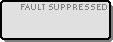
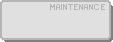


The DeviceElement represents a device in the M&C user interface. It displays the status of the device by it's color/shape and gives access to the device window for this particular device by a double mouse click. The right mouse button launches a context menu with common operations for the device.
Data Model (extends ScreenElement)
| Key | Type | Value |
|---|---|---|
| type | String | Always "DeviceElement". |
| xpos | Number | see ScreenElement |
| ypos | Number | see ScreenElement |
| width | Number | see ScreenElement |
| height | Number | see ScreenElement |
| id | String | The device ID this element represents in the UI. The device ID consists of the M&C name followed by a dot and the device name. |
| privilege | Number | The privilege level required to show details about the device and to change the device's operating state. |
| icon | String | The (base-) name of the icon to show for the device. See Icon Selection below. |
| showName | Boolean | true = show the device name als a label on top of the icon |
| showIsBackup | Boolean | true = use a different icon variant for this device if it is in 'is backup' state. |
| signalBackupId | String | A message ID to listen for a parameter from which the 'is backup' state is derived. Ignored unless showIsBackup is true. |
| backupValue | String | The parameter value which must be matched for the 'is backup' state. |
| font | String | The font to be used for the label. |
| color | String | The color to be used for the label (#RRGGBB) |
Based on the id parameter, the DeviceElement subscribes for a number of parameters, the message IDs of these are as shown below:
{id}.fault: The device's summary fault state. May be one of OK., WARNING or Summary FAULT
{id}.faults.99: (Boolean) The device's communication fault
{id}.mode: The operation mode of the device. This is one of OPERATIONAL, FAULT-SUPPRESSED, OUT-OF-SERVICE and MAINTENANCE
{id}.info.signal.on: If the value reported via this messageID is true or ON, the device is considered to be actually ON-AIR. In this case, there is an additional emblem displayed at the upper right corner of the icon signalling this state.
signalBackupId: If the value reported via this messageID equals the backupValue, the DeviceElement considers the device to be a backup for something else.
Icon Selection
The DeviceElement shows the state of the device by switching between several variants of of the icon. The data model defines the base version of the icon which is shown when the device is in operating state without a fault. Other states are displayed by changing the icon to a variant which has a status code appended to the base name of the icon:
| Icon Name | State | Example |
|---|---|---|
| basename.gif | Operational and OK | |
| basename-C.gif | There is no communication to the device | |
| basename-F.gif | The device shows a FAULT | |
| basename-W.gif | The device shows a WARNING | |
| basename-S.gif | The device id in fault suppressed mode | |
| basename-M.gif | The device is in maintenance mode | |
| basename-O.gif | The device is out of service | |
| basename-B.gif | The device is OK and used as backup | |
In the sat-nms software there exist several sets of these icons, the is extensible by the customer. Supported image formats / file extensions are *.gif, *.jpg and *.png.
The pseudo code sniplet below describes how the DeviceElements is expected to combine the individual status variables to the name of icon to be shown.
    if summary-alarm
        if communication-alarm
            use -C icon
        else
            use -F icon
    else if summary-warning
        use -W icon
    else if mode == MAINTENANCE
        use -M icon
    else if mode == OUT-OF-SERVICE
        use -O icon
    else if mode == FAULT-SUPPRESSED
        use -S icon
    else if is-backup
        use -B icon
    else
        use standard icon