2.3.1 Device details panel
The device details panel shows you the device information for a device. It is displayed on the right-hand side of the window on clicking e.g. on display element device icon. You can also perform some quick actions here, e.g. put the device into operational or out of service mode.
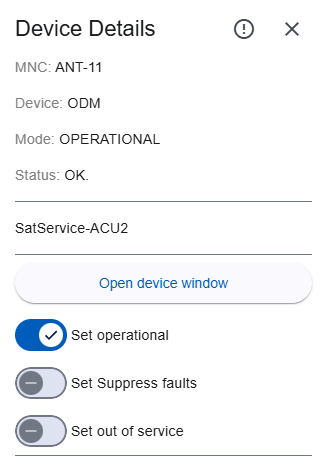
Top
- Device details: Title of the panel.
- Info icon: On click it opens a device window directly by Faults page. If there is any fault or warning the icon color will be red (alarm or fault) or yellow (warning) otherwise it will be black.
- Close: Close the device panel. You can also click outside the panel to close the panel.
Details
- MNC: The MNC name of the device.
- Device: The name of the device.
- Mode: Current mode of the device.
- Status: Current status (fault) of the device. "MNC.Devicename.fault" is used in this case.
- NO.: No fault
- Summary FAULT: Text displayed in red color.
- WARNING: Text displayed in yellow color.
- Device comment: A device comment saved the device.
- Open device window: Open device window for the device.
- Change mode switches: By clicking on the mode set the device to the selected mode.
- Toggle switch: If the selected device is a display switch element, a toggle button is displayed. You can toggle the position of the switch (A -> B or B -> A)