1.16.2.4.11 Device Icon
The Device Icon display element represents a device in the M&C user interface. It displays the status of the device by it's color/shape and gives access to the Device Window for this particular device by a double mouse click. The right mouse button launches a context menu with common operations for the device.
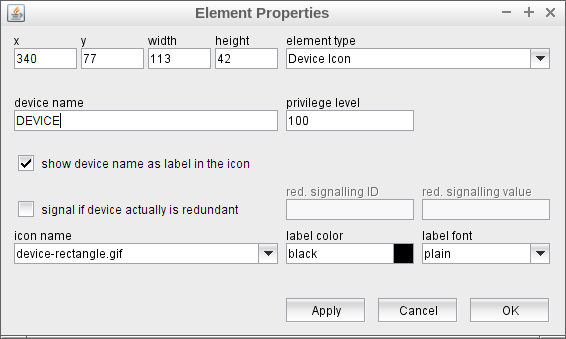
The attributes listed below may be configured to customize a display element of this type:
- device name --- The name of the device this element stands for.
- privilege level --- The privilege level necessary to use this device icon. The predefined screens of the software use 100. In your own screens you may set certain parameters to higher privilege levels, limiting the group of operators permitted to use this icon.
- show device name as label in the icon --- Check this mark to show name of the device as a label in the icon. Un checking may be useful when using very small icons where the label would not fit inside or when a label shall be used which differs from the name of the device.
- signal if device actually is redundant --- Check this mark to apply a special coloring for devices which are in the redundant signal path of a redundancy switching facility.
- red. signalling ID --- The message ID of a parameter which gives the information if the device actually operates as the redundant one or if it is operational. For a 1:1 TWTA redundancy this could be the position parameter of the waveguide switch which selects the signal from the two TWTAs
- red.singalling value --- If the value of the parameter addressed by above message ID matches the value given in this field, the device icon is shown as "redundant" (depends in the icon set used, the factory icon sets use a blue background color for this).
- icon name --- Selects the name of the image to display. The sat-nms software at least provides three predefined icons for this purpose:
 --- device-rectangle.gif
 --- device-square.gif
 --- device-minirect.gif
Your installation probably will contain some more device icons to select.
- label color --- The color attribute of a parameter element sets the color of the device name shown with the icon.
- label font --- The font attribute applies to the device name, too.
Using customized images
You may supply your own images for the device icon display element. To do so, place seven images into the ./images directory named "xxxxx.gif", "xxxxx-F.gif" (fault), "xxxxx-C.gif" (communication fault), "xxxxx-S.gif (fault suppressed)", "xxxxx-R.gif" (redundant), "xxxxx-O.gif" (out of service) and "xxxxx-M.gif" (maintenance). You should consider the following:
- All images should be of the same size.
- The software places the device name at the lower left corner of the image using the selected font and color. All four images should use appropriate colors in this area to keep the device name visible.
- Beside GIF-images the software also accepts PNG images (file extension .png) and JPG images (file extension .jpg). All images of a set must be of the same type (GIF/PNG/JPG).
Using a customized 'transmitting' emblem
For devices which provide the 'info.signal.on' parameter to report that the device is actually transmitting or receiving, the device icon shows an emblem at it's upper right corner. The software uses the 'signal-on-emblem.png' image as a default for this.
You may define individual emblems for each image set by placing a "xxxxx-X.gif" (or .png/.jpg) image in the ./images folder with xxxxx being the base name of the device icon. The software will use this file for the transmitting emblem of this particular icon set. The file extension of the emblem must match the extension of the base icon image.