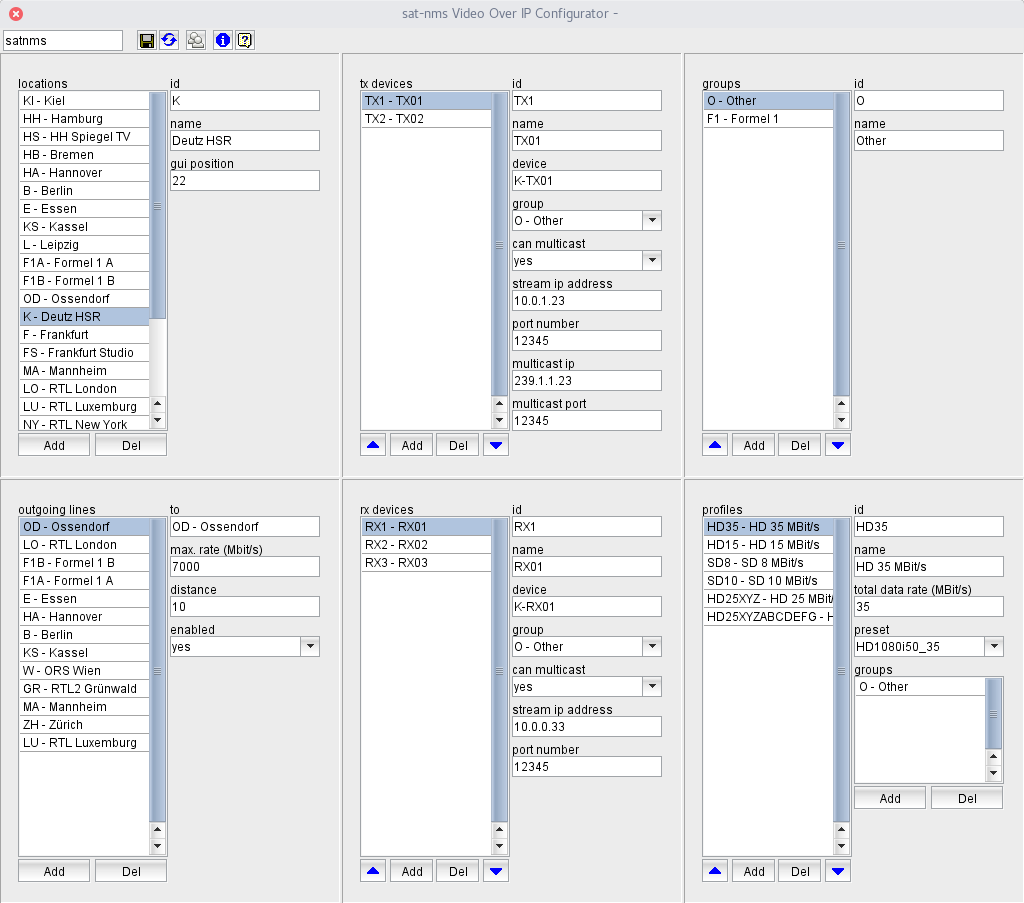
The VioIP Network Configuration Application lets you configure many aspects of the VioIP Network. You can add or delete locations, endpoint devices or data lines between the locations.
The application works as a document editor: when started, it reads the actual VioIP network configuration and shows the settings. Edited settings are applied when the configuration is saved by clicking the "save" button in the tool bar. At any time you can revert the configuration to the settings which are actually running, e.g. if you deleted accidentally a location which shall not be deleted.
When you save an edited configuration, the program informs all running instances of the VioIP Client Application to reload the configuration in order to reflect the changes immediately. This is done unless you added or removed devices, in this case a restart of the M&C server is necessary to make the changes effective.
The configuration editor window is divided into 6 sections: Locations , Outgoing Lines , TX Devices , RX Devices , Groups and Profiles . While the last two sections work independently from the others, the sections Outgoing Lines , TX Devices and RX Devices always refer to the location actually selected in the Locations section.
The tool bar at the top of the window gives access to a number of global functions in the software. Below there is a short description for each of the toolbar buttons.
 --- The left field at the window's tool-bar shows the login-name of the user who is actually logged in. You may click with the mouse to this field, the program pops up the login/logout dialog. Please note, that you need a privilege level of 150 or higher to change the configuration of the software
 --- Writes the edited configuration back to the server. If you added or removed end points / devices this also changes the M&C device setup. In such a case a restart of the M&C server is necessary to make the changes effective. The software gives you the option to restart immediately or to postpone the restart.
 --- Reverts all changes.te .ts
  Opens the User Management Window .
 --- Shows the program version info.
 --- Shows this help page.