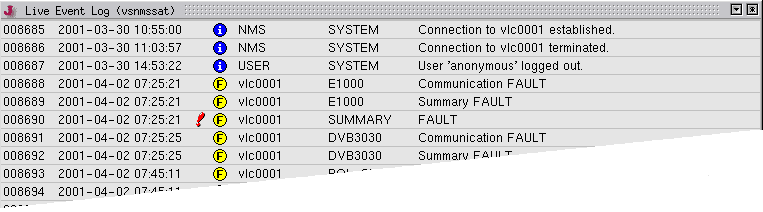
The Live Event Log window shows the recent event messages as they are received from one of the VLCs. Unlike the Event Report window , which sorts the events by the when they were originated, the Live Event Log window shows the messages in the order of their arrival at the NMS. The window has a fixed size and always shows the last 25 messages.
The sort order of the event list (newest first / oldest first) may be toggled using the context menu shown with a right mouse button click on any line of the list. The default sort order is determined from a parameter set in the "client.properties" file located at the NMS or M&C server. Setting the key "gui.eventSortOrder" to "true" or "false" defines the default behavior of the live event log window.
Data shown in the list columns
Column 1 --- The event ID. This is a unique number the software assigns to each event which arrives at the NMS.
Column 2 --- The time stamp when the event was originated. The originating VLC sets this, so the time relies on the accuracy of the VLC's clock.
Column 3 --- The 'need acknowledgment' mark. Messages showing a red exclamation mark in this column are fault messages which need to be acknowledged by the operator.
Column 4 --- The message priority. The message priority decides on the urgency, the message gets delivered from the VLC to the NMS. It also is a search criteria in the Event Report window. The following priority symbols may appear:
 --- This is an informational message (lowest priority)
 --- This is a fault message (medium priority)
 --- This is an alarm message (highest priority, the VLC tries to deliver this immediately, regardless of the dial timing settings)
Column 5 --- The primary message source. This usually is the ID of the VLC which issued the message. Messages marked with 'USER' or 'NMS' in this column have been generated locally in the NMS.
Column 6 --- The secondary message source. This gives a more detailed information about the source of the message. It may be the name of the device in a VLC which caused the event.
Column 7 --- The message text.
You may acknowledge messages marked with the red exclamation mark by double-clicking to the message line. This makes the exclamation mark disappear, an acknowledgment message gets added to the end of the log.
Please note, that if you close the Live Event Log window and open it again, any acknowledged message will appear with the exclamation mark set again. This is because the recognition of acknowledged messages depends on message sorting which does not happen in this window.