The Frame Button display element creates a button which launches another user interface screen if pressed. The screen to be launched may be another user defined screen or a predefined one.
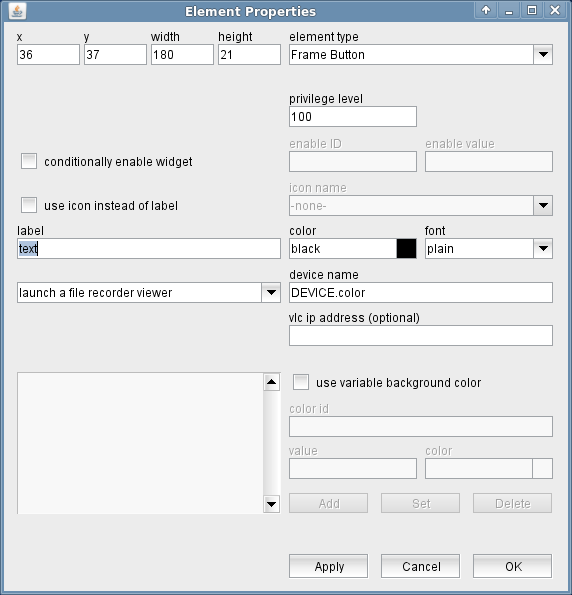
The attributes listed below may be configured to customize a display element of this type:
- privilege level --- The privilege level necessary to activate this button. The predefined screens of the software use 100. In your own screens you may set certain parameters to higher privilege levels, limiting the group of operators permitted to change the parameter.
- conditionally enable widget --- FRame buttons may be locked to disabled state unless another parameter matches a given value. Check this mark to activate this feature.
- enable ID --- This field defines the ID for the enabling parameter.
- value --- The value belonging to the parameter above. The actual value of the parameter addressed by "enable ID" mut match this value in order to enable the entry field.
- use icon instead or label --- Check this mark in order to make the button show an icon instead of a label text.
- icon name --- Provides a list of all available icons / images on the sat-nms server.
- font --- The font to be used for the button label.
- label --- The label text is drawn on the button.
- color --- The color of the button label. Colors may be specified by standard color names like red / green / blue or using a hexadecimal RGB notation. '#FFFF00' for example specifies yellow. You may click to the color example field in order to open a color chooser dialog and select the color from there.
- font --- The font of the button label.
- button function --- with this field you select the function of the button. The available functions are listed below. The meaning of the parameters right beside the function selector changes with the function selected.
- launch a child screen --- Launches a new screen in a separate window. Parameter 1: screen name Parameter 2: n/a
- replacescreenwithanotherone --- Replaces the actual screen by another one, re-uses the same window. Parameter 1: screen name Parameter 2: n/a
- launch a tty setup window --- Launches a dialog to edit the line settings of a serial interface. Parameter 1: interface name, e.g. ttyS2 Parameter 2: n/a
- launch a device setup window --- Launches a dialog to edit the setup parameters of a given device. Parameter 1: name of the device Parameter 2: n/a
- launch a load preset dialog --- Launches a dialog to select and apply a preset to a given device. Parameter 1: must contain the name of the device, followed by a comma and the name of the device driver used by the device. Example: MODEM-1,Comstream-CM601A-SCPC Parameter 2: if this parameter is not empty, the preset load dialog initializes it's search pattern field with this value. Only presets containing the pattern string (character case doesn't matter) will appear in the list.
- launch a text viewer window --- Launches a multiline text view window which shows the actual contents of the given parameter. Parameter 1: The message ID of the parameter to show. Parameter 2: n/a
- launch a tracking viewer --- Launches a tracking report window for the Antenna-Tracking logical device. The tracking report window shows azimuth or elevation together with the beacon level over the recent 48 hours. Parameter 1: The message ID to show. Typically this is the "state.mode4" Parameter of an Antenna-Tracking or a SatService-ACU-ODM device. Parameter 2: n/a
- launch a az/el viewer --- This is much like the tracking viewer, but the window plots elevation versus azimuth in a quadratic diagram. Parameter 1: The message ID to show. Typically this is the "state.mode4" Parameter of an Antenna-Tracking or a SatService-ACU-ODM device. Parameter 2: n/a
- launch a file recorder viewer --- Launches a graphical presentation screen for data recorded with a File-Recorder logical device. Parameter 1: Name of the File-Recorder device and (optionally) a preset number 1..8 to be invoked after the data has been loaded. A ">" may be appended to the preset number in order to make the diagram show recent data instead of the data shown at the time when the preset was stored. Example: "FILEREC-12>" shows the dat a of the FILEREC-1 device, invokes the preset number 2 and shows the data recently recorded by the file recorder device. Parameter 2: In an NMS environment you must supply the VLC's IP address in this field. The VLC must be reachable directly and permanently from the client PC to make this feature work safely. In a M&C system leave the field empty
- launch a spectrum viewer --- Launches the device window of a spectrum analyzer and optionally sets an arbitrary number of parameters. Parameter 1: The name of the spectrum analyzer device Parameter 2: An optional macro list. This may contain zero or more parameter ID - value pairs. These settings may be used to preset the spectrum analyzer certain settings but also to control switches or other devices in the signal path. Example: S03=B, SA1.center=12345.666 If the operator clicks to this button, the switch S03 is commanded to position B, the spectrum analyzer SA1 is set for a center frequency of 12345.666 MHz and the spectrum analyzer window gets opened.
- launch an m&c client --- Launches another M&C client program which connects to the given IP address. The M&C client runs in a separate JVM. It tries to login at the target machine with the same name and password the parent program uses. Parameter 1: The address to connect to Parameter 2: n/a
- launch another java runtime --- Runs an arbitrary Java program by starting another JRE process. Note, that all command line arguments including the classpath specification must be provided. These arguments probably will be platform specific, hence a user interface depending on this feature only will work on the platform it is configured for. Parameter 1: The command line parameter for the java program Parameter 2: n/a
- launch a web browser window --- Launches the platform's standard web browser and shows the given URL. Parameter 1: The URL to show. To show a certain page of the online manual, simply use the 4 digit topic number of the page as the URL parameter. To show an extern web page, e.g. the web based user interface of a sat-nms ACU ODM, enter a URL starting with "http://...". Example: " http://192.168.2.81 ". Parameter 1 must be a valid URL string in this case, space characters must be escaped as "%20". The BROWSER button this way also can be used to operate a device which provides a web user interface. In device-oriented screens, the character '@' gets expanded to the device's IP address if contained in the URL string. Example: " http:/// " lets the browser call the top page of the device's web user interface. Parameter 2: n/a
- start a program on the client pc --- Starts a program on the client computer. The program must be specified with the full path to the executable file. Parameters for the program may be added, separated space characters. If the path name itself contains space characters, in must be enclosed in double quotes.
- launch a VideoLAN media player window --- Starts the VLC media player in a new window to show live video from a certain device. This works with devices like webcams, if the device driver is prepared for this. See the paragraph "VideoLAN media player" below for more details. Parameter 1: The name of the device for which the VLC player shall show the video stream. When used in a device window, parameter 1 is ignored and the button uses the name of the device of this window. Parameter 2: n/a
- launch a Pointing-Robot import screen --- Launches a file import window which lets you import pointing table, TLE or Intelsat ephemeris data files from the client PC to the M&C server compunter into the directory where the Pointing-Robot expects these files. Parameter 1: n/a Parameter 2: n/a
- navigate to a given treeview node --- Makes the button a navigation button for the treeview application. Clicking the button changes the panel at the right side of the tree view window as if the tree node described by the path specification would have been clicked. Parameter 1: The tree node (path) specification for the button. The path consists of the display names of the tree nodes making up the path to the desired node, separated by '.' characters. If the button for example shall show the page for a subsystem called "Stream-1" contained in a subsystem called "Streams", then the path specification for the button is Streams.Steam-1 Parameter 2: n/a
- use variable background color --- Checking this mark enables the variable background color feature for this screen element. Depending on the actual value of the variable addressed by 'color id', the element's background is set using the translation table shown in the lower left corner of the dialog. If the actual value of the color id variable does not match any of the table entries or if no color id is specified, the first color in the list is used to draw the element's background. The buttons Add/Set/Delete along with the value and color fields are used to edit the color translation table.
- color id --- The message ID of the parameter which controls the background color of this element.
- value --- The parameter value of the actually selected table entry
- color --- The color specification of the actually selected table entry. This may either be the name of a basic color (red, yellow etc.) or a hexadecimal RGB color specification like '#FF8000'. The latter defines some sort of orange, consisting of 0xFF red, 0x80 green and 0x00 blue. The actually selected color is shown in the right part of the entry field, clicking to this opens a color chooser dialog which lets you select / compose the the color to your needs.
- Add / Set / Delete --- These buttons control editing the color translation list.
- To add a new value / color pair to the list, fill the value and color fields, then click to "Add".
- To change the color assigned to a given parameter value, first select the table entry of interest, change the color value and finally click "Set".
- To delete a value / color pair from the list, select the table entry and then click "Delete".
VideoLAN media player
The Frame Button may be configured to launch a VideoLAN media player (VLC) in order to show a live video stream sent by any device capable for this. To use this feature, the VideoLAN media player must be installed on the client machine and the sat-nms driver of the device sending the video stream must be prepared for this.
The frame button expects the device driver to provide a variable called videoLAN.cmds which must contain all command line parameters the VLC media player requires to show the desired stream. In the simplest case this is an URL specifying the video stream, but other command line parameters for the VLC player may be used as well.
To launch the VLC media player on Microsoft Windows clients, the program must know the complete path to the executable "vlc.exe". In the M&C server's configuration file 'client.properties' you may set this path. If required, multiple variants may defined, one for each client PC. You find more details on this in the factory default 'client.properties' file.