The button element creates a button which launches another user interface screen if pressed. The screen to be launched may be another user defined screen or a predefined one.
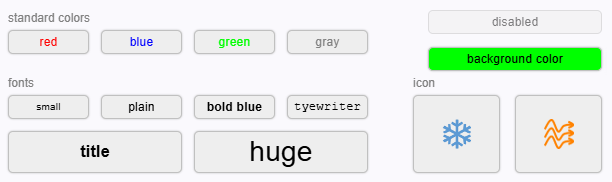
The action field of the ButtonElement defines what the button will do when clicked by the operator. The list below shows all known values for action, the meaning of this and a description of the parameters par1 and par2 which will have different meanings for particular action.
CHILD-SCREEN
Launches a new browser tab or window showing the user screen referenced with par1.
- par1: The name of the user screen to show.
- par2: null
- par3: null
REPLACE-SCREEN
Replaces the actual user screen by the one referenced with par1.
- par1: The name of the user screen to show.
- par2: null
- par3: null
LOAD-PRESET
Launches a "Load Preset" dialog which lets the operator select and apply a device preset from a list of presets which are defined for this particular type of device. Device presets are local to each M&C instance, have to be loaded and applied from there.
- par1: The name of the device to which the preset shall be applied to. The device name has the name of the M&C prepended where it is controlled. Example:
MYMNC.MYDEVICE (must be set in the screen editor this way).
- par2: The name of the driver of this device.
- par3: An option search pattern to filter the list of displayed presets. All presets containing the given string (not case sensitive compare) shall be shown. If par3 is null, all preset for the given device / driver combination shall be shown.
FREC-VIEW
Launches a File-Recorder view window or a Data‑Recorder view window if the device is an Parameter id. This window shows the data recorded by the File-Recorder device referenced with par1 or the live data provided by this device.
- par1: The name of the device to open.
- File-Recorder: The device name has the name of the M&C prepended where it is controlled. Example:
MYMNC.MY-FREC (must be set in the screen editor this way). In the device screen of the file recorder, the special device name "." denotes this device.
- Data Recorder: The M&C and Device id are a Parameter id (
MNC.DEVICE.state). Others can be ignored.
- par2: The file recorder view preset number (0..7) to be applied. May be null, in this case no stored settings are applied.
- par3: null
SPECTR-VIEW
Launches a Spectrum Display window. This window in fact is a device screen of the CSM-Spectrum-Analyzer device.
- par1: The name of the spectrum analyzer device. The device name has the name of the M&C prepended where it is controlled. Example:
MYMNC.MY-FREC (must be set in the screen editor this way).
- par2: A comma separated list of message-id/value pairs. Within each pair the message-id is separated from the value by one space character. Message ids are fully qualified, starting with the M&C name (must be set in the screen editor this way). The Spectrum Display window shall parse this list and send every message defined in the list with a poke call to the backend. This macro-like function is used to initialize the spectrum analyzer or to switch its input when the window is launched.
- par3: null
BROWSER-VIEW
Opens a new Browser window and displays a given URL in this window. This function is used to invoke the sat-nms online help and to launch the Web-GUI of certain devices.
- par1: The URL to show. Before launching the browser window, some replacements have to be done on the URL string:
- If par1 is a string consisting only of 4 decimal digits, this is a sat-nms online help topic number and the string must be expanded to the full URL from where this topic can be loaded by the browser.
- If the ButtonElement is part of a device screen and the URL contains '@' characters, they have to be replaced with the (IP-) address of the device. A double '@@' escapes this behavior and gets replaced by a single '@' in the URL string.
- par2: null
- par3: null
TREE-NAVIGATE
In a tree view UI this button navigates in the tree to the tree path referenced with par1. As the tree view UI with the WebUI is still t.b.d., this description should be considered as preliminary.
- par1: The tree view path to navigate to.
- par2: null
- par3: null