2.17.2 Calender view
The Calendar View provides an interactive interface to visualize, create, manage, and track events based on different time frames (day, week, month). Users can navigate between dates, create new events, edit existing ones, reschedule an event by drag and drop, and distinguish events using a color-coded legend.
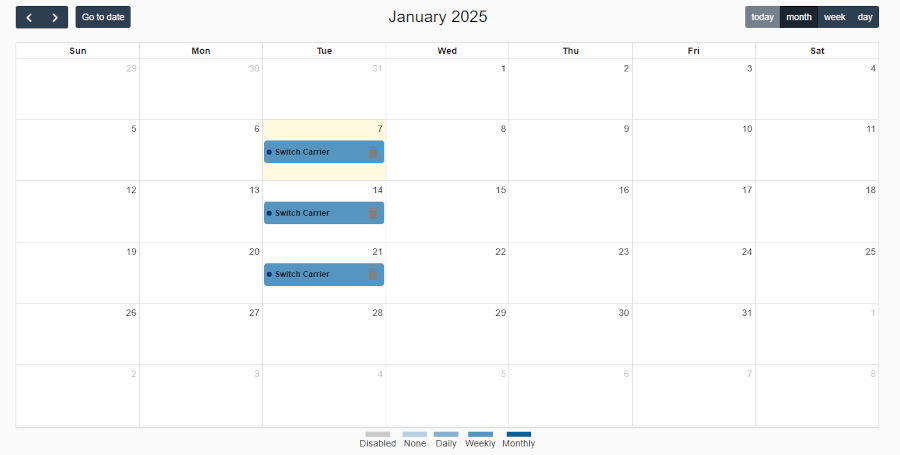
Navigation bar (top)
- Left and right Arrows: Use these arrows to navigate to the previous or next time-frame (month, week, or day, depending on the selected view).
- Go to date button: Click to open a dialog where you can select a specific year and month to navigate directly.
Current date
- In the middle, there is a heading displaying the current month and year. If you select a view other than the month, it will show the date range for the week or, for the day view, the specific month, day, and year.
View selection buttons
Calender
- In the middle is the calendar view, displaying the selected view. Clicking on an event allows you to edit it, and clicking on the delete icon lets you delete the event. If you click on an empty date, you can create a new event. You can also reschedule an event by dragging and dropping it to a different date. A pop-up will appear to confirm the changes.
- Once an event is scheduled, the calendar will display it only on the set date. If the event is set to repeat weekly, it will appear every week until it expires, and similarly for yearly or monthly or daily recurring events.
Color-coded legend (bottom)
- Clarification of the calendar colors, explaining what each color represents.