2.22 User management
The user management lets you manage the list of users which are allowed to operate the software. You need to be a administrator with privilege level 150 or higher to access the user management page.
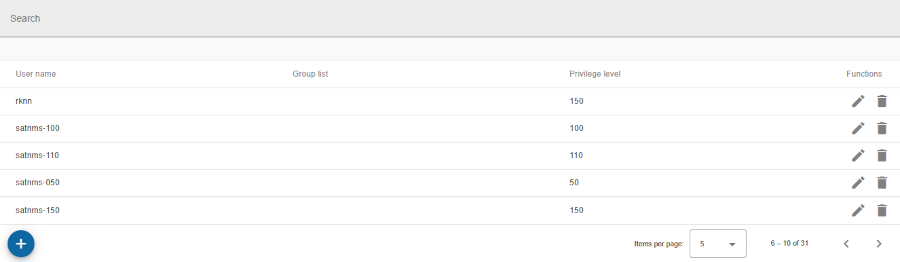
Search bar
- Located at the top of the table.
- Allows users to filter keys by keywords, such as name, key type and key.
Header row
- You can sort rows in ascending or descending order by clicking on the column header.
- Sorting is applied to the entire dataset, not just the current page.
- The active sort order (ascending or descending) is typically indicated by an arrow or icon near the column name.
Table columns
- Checkbox column:
- Location: The checkbox column is located at the far left of the table.
- Purpose: Allows users to select one or multiple rows for delete row(s).
- Functionality:
- Single Selection: Click on a single checkbox to select an individual row.
- Multiple Selection: Click multiple checkboxes to select multiple rows at once.
- Select all: The checkbox in the header row allows you to select or deselect all rows on all pages.
- Delete: After selecting events, delete action on bottom toolbar can be performed for all selected items.
- Username: The login name of the user.
- Group list: Group list in which is user assigned.
- Privilege level: The privilege level level determines whether a user is only allowed to control some basic aspects of the M&C system or whether the operator is allowed to change everything. Higher numbers mean higher privileges or more comprehensive control.
- Functions: Action icons for managing the user:
- Edit: Pencil icon to modify/edit the user.
- Delete: Trash can icon to delete the user.
Bottom toolbar
- Delete selected users: A button to delete selected users/rows from checkbox column.
- Create user: + button is used to create new user.
- Pagination controls: Allows users to set the number of items displayed per page and navigate between pages.