1.19.2 Dialogs
Add/rename node/subsystem
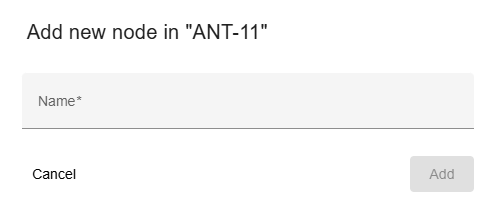
- Trigger:
- when you click on the "Add node +" button on the bottom to create new subsystem/parent node or
- an on pencil icon to rename node from context menu
- The dialog title clearly indicates whether you are creating a new node on top level or under other node, renaming an existing one, ensuring clarity in the action being performed.
- Fields:
- Name: The name of the subsystem or node. It must be unique compared to other subsystem/node names.
- Actions:
- Add/Rename:
- For new node, this creates the node with the provided name and add devices dialog will be open.
- For existing node, this renames subsystem/node.
- If an error occurs in the input fields, the button is deactivated.
- Cancel: Closes the dialog without saving.
Add devices
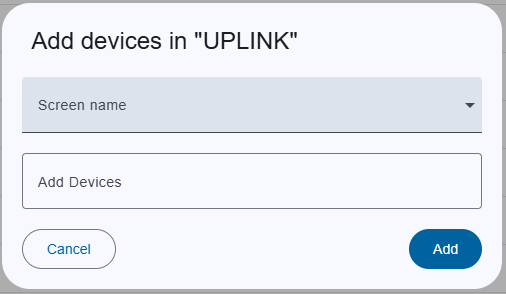
- Trigger:
- when you click on the "Add devices" button from context menu of selected subsystem/parent node.
- The title of the dialog clearly indicates in which subsystem/parent node you are adding devices to provide clarity about the action being performed.
- Fields:
- Screen name: This auto-complete drop-down contains a list of all user screens. When you select a user-screen, Device-Elements are automatically filters and inserted into the input field below from the user-screen.
- Add devices:
- Device filtering: The input field includes a dropdown that shows a list of available devices. As the user types in the input field, the list is automatically filtered to match the entered text. Once you have completed the device selection, simply click outside the dialog to hide the dropdown.
- Adding Devices: When a device is selected from the dropdown, it appears as a small tag (chip) displayed above the input field. Users can continue selecting multiple devices, with each device added as a separate tag. Selected device(s) are disabled for the clarity. Each tag includes a small close (×) icon. Clicking on the close icon removes the corresponding device from the selection.
- Actions:
- Add: Add device(s) to the selected subsystem/parent node.
- Cancel: Closes the dialog without saving.
Confirmation dialog
- Trigger: Opens when you click the
- delete node from context menu
- Trash icon from device/child node.
- Reset button
- Leaving the page if there are unsaved changes.
- Content: Asks the user to confirm the action, depending on where you trigger the dialog.
- Actions:
- Yes: Confirm the action.
- Cancel: Cancels the action.