1.21 Treeview editor
The Treeview editor lets you define or modify the tree / subsystem hierarchy used by the M&C Tree View.
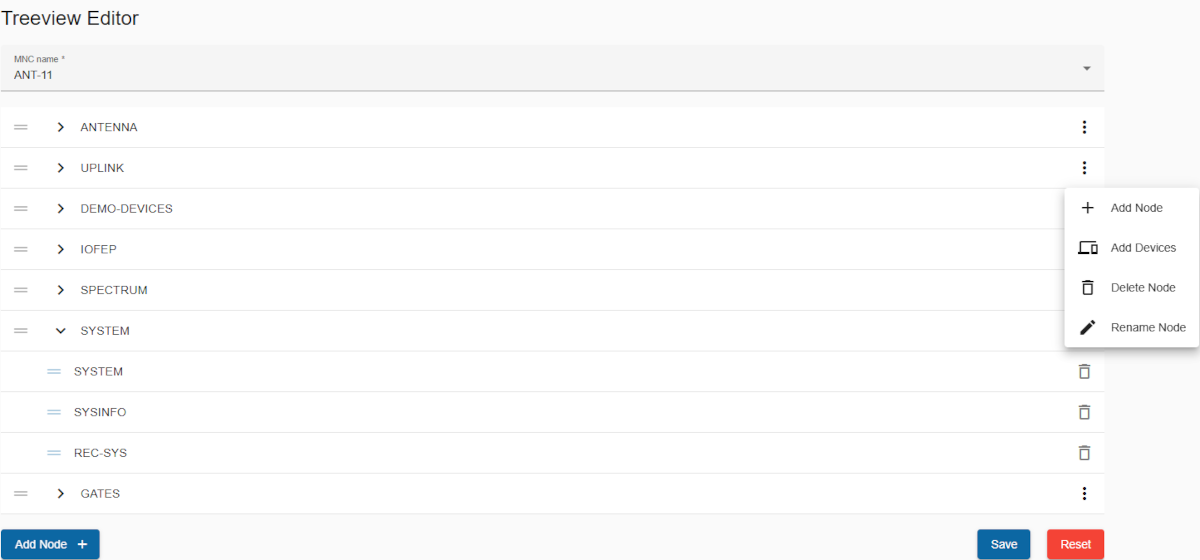
Title: Title of page.
MNC name: Below the title, you must select an option from the drop-down list to start editing.
Tree structure
Subsystem/Parent node: are displayed as the top-level entries in the tree. Each parent node can have child nodes nested underneath. Subsystem/Parent nodes can be expanded (▼) or collapsed (►) to hide or reveal their child nodes.
- Drag handel: Appears to the left of the subsystem/parent node name, allowing the node to be reordered or moved into another subsystem/parent node.
- Node name: Displays the name of the subsystem/parent node.
- Context-menu (⋮): Located to the right of the node name, this menu provides the following options:
- Add Node: Create a new subsystem node under the selected node.
- Add Devices: Attach specific devices to the selected node.
- Rename Node: Change the name of the selected subsystem/parent node.
- Delete Node: Remove the subsystem/parent node and all its children.
- Sort: Sort subsystems and the devices alphabetically.
Device/Child node: are displayed indented beneath their respective subsystems or parent nodes and cannot exist at the top level (as subsystem). They must always belong to a subsystem.
- Drag handel: Appears to the left of the device/child node name, allowing the node to be reordered within the same subsystem/ parent or moved into another subsystem/parent node.
- Node name: Displays the name of the device/child node.
- Delete button: A trash bin icon on the right allows for quick deletion of the device/child node.
Drag and Drop: Subsystem/Parent nodes and devices/child nodes can be dragged and dropped using the drag handles:
- Reordering: Rearrange nodes within the same subsystem/parent.
- Moving: Move nodes between different subsystems/parents.
- Error: If something is not correct, the snack bar (error) would be displayed with the description of the error at bottom of the page.
Bottom toolbar actions
The Save and reset button is deactivated if no changes have been made.
- Add node: Use the Add Node + button at the bottom of the editor opens a dialog to quickly add a new subsystem/parent node to the tree.
- Save: Saves all changes made in the editor. If you have not saved the changes and accidentally leave the editor, a confirmation dialog will appear in which you must give your consent to leave the editor/page.
- Reset: Revert the tree structure to its original state.