4.3.5 Backup of ACU settings
After complete configuration is done and the
sat-nms ACU19V2 is set up finally, the last
step that is recommended to be done is the backup of ACU settings. By
this way an easy replacement of the ACU-ODM could be performed. The
following step-by step description shows how to do this.
- Open the chiptool (refer to chapter 3 4.3.1 Setting
the IP Address to see where to find and how to install this
tool)
- Right click to the desired unit. A drop-down list will open, choose
FTP
- A small window like shown on the following picture will be opened.
Please double-check the displayed IP, you might adjust it in the
drop-down list here.
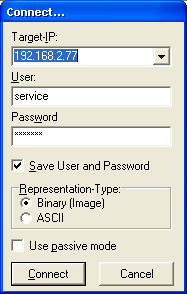
- Login with username service and password
service
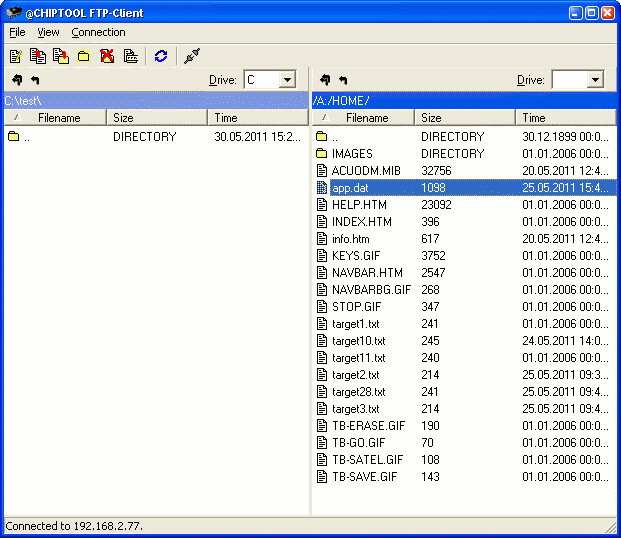
- Now you see on the right side the file system of the ACU like shown
on the following picture. On the left side you see the computers file
system.
- Browse on the left side to the desired location to which you like to
save the backup
- Right-click the app.dat file and choose
copy in the drop down list. The file will immediately
be copied to the location shown on the left side. If you have saved
targets, you might backup them in the same way. They are named
targetXX.txt . XX represents the number of the
target.
- To copy a backup file to the ACU, browse on the left side if the
window to the desired app.dat and copy this file to the
ACU in the same way (right click->copy)
- After copying an app.dat file to the ACU, you have
to reboot the unit (power off). By next starting up, the new
app.dat file will be used.