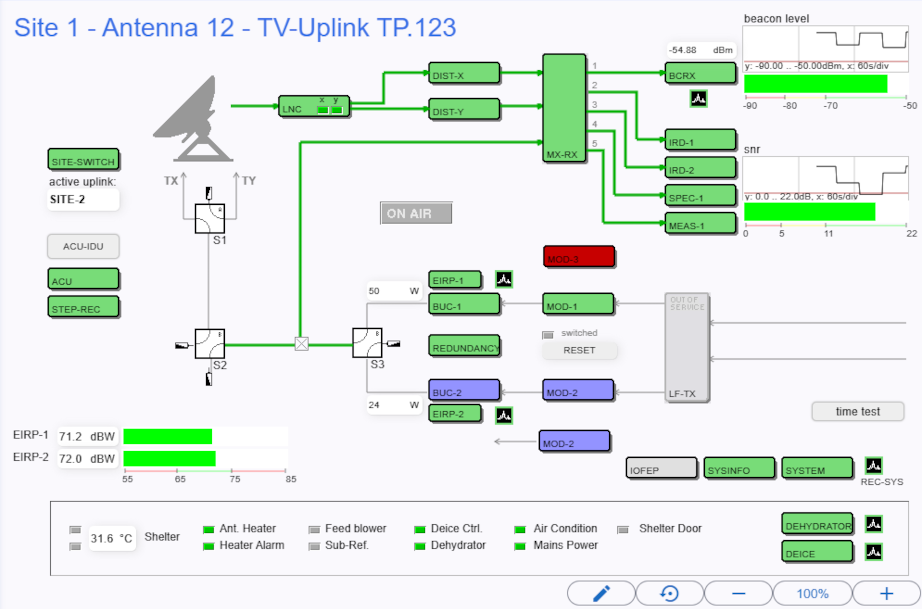
The User Screens are the screens that are configured with the screen editor. You can interact with the user screen (zoom in or out, scroll vertically or horizontally, reposition the entire screen) and the elements (depending on the element). You do not have to reload page to get the actual values. The values of the elements are always updated. If you move the mouse over an element, details about this element are displayed on left bottom corner of main window. However, you must activate this setting in the user settings under 'Debug mode'.
In the bottom right-hand corner of the main window there is a toolbar with the following functions:
| Function | Icon | Description |
|---|---|---|
| edit screen |  |
open the screen editor with the active user screen |
| Reset position |  |
resets the position of the user screen |
| Zoom out |  |
zoom out, scale down the elements inside of the page |
| Current zoom |  |
display the current zoom of the user screen. Clicking on it works like a button and resets the zoom to the default setting. |
| Zoom in |  |
zoom in, scale up the elements inside of the page |
User screens shortcuts
ctrl + + to zoom in.ctrl + - to zoom out.ctrl + 0 to rest zoom.ctrl + mouse wheel to zoom in and out.shift + mouse wheel for horizontal scroll.Space + hold mouse left click + mouse move to drag and drop the user screen on desired position.