2.20.2 Dialogs
Add/edit user dialog
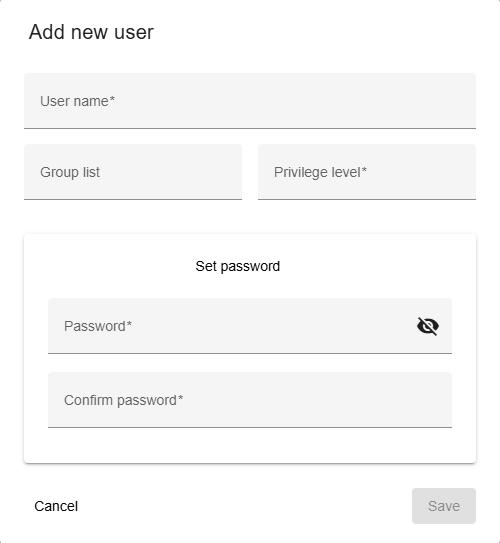
- Trigger:
- when you click on the "+" button on the bottom toolbar to create new user or
- an on pencil icon to edit in the menu column
- The dialog title clearly indicates whether you are creating a new user, editing an existing one, ensuring clarity in the action being performed.
- Fields:
- Username: The login name of the user with which the user log in.
- Group list: User group list.
- Privilege level: Set privilege level for controlling user access. Must be greater then 1.
- Set password/ Change password: If you want to edit or reset an existing user password, change the password displayed instead of Set password and simply expand it to change password.
- Password: Set use password.
- Show password: Click on visibility/eye icon to show or hide (default) password.
- Confirm password: Confirm password.
- Actions:
- Save:
- This saves modifications.
- If an error occurs in the input fields, the button is deactivated.
- Cancel: Closes the dialog without saving.
On delete confirmation dialog
- Trigger: Opens when you click the trash icon for an key from menu column or trash icon from bottom toolbar.
- Content: Asks the user to confirm whether they want to delete the selected user(s).
- Actions:
- Yes: Deletes the user(s) permanently.
- Cancel: Cancels the deletion action.