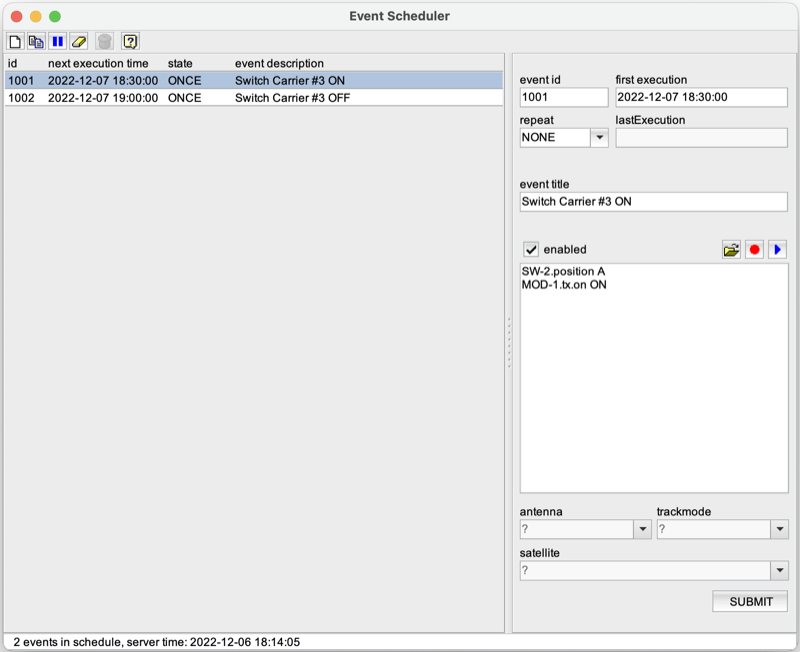
The macro scheduler included in the sat-nms M&C software lets you execute macros at planned times. You access the macro scheduler from the M&C main window by clicking to the toolbar icon which shows a clock icon.
The scheduler supports events which are executed once at a given time as well as repeated events on a daily, weekly or monthly base. Repeated events are executed in the planned was up to a given end date. Monthly repeated events are executed every month at the programmed day of month. If you program a monthly event for 29.-31. of a month, it will be executed at the last day of a month which is shorter.
The macro scheduler window shows a scrollable list of planned events and provides controls to add, edit or delete events. Like with the macro management window, you may either record the macro you want to be played at the event's time or enter the commands manually. It is also possible to load a stored macro into the event.
The left side of the window shows the list of scheduled events, the right side shows the properties of the actually selected event (or the properties of the new event if you are about to create a new event). Events are sorted by the time of their next execution, the event to be executed next appears on top of the list.
By default the scheduler deletes events once the last execution of this event has been done, however, the scheduler may be configured to keep these events. In the latter case, outdated events appear at the bottom of the list, grayed out with the state DONE.
The toolbar at the top of the window contains all functions to manage the schedule, to add or remove event or to toggle their enabled state:

 Clears the properties section on the right, lets you enter the properties of a new event.
 Makes a copy of the actually selected event into the properties section on the right. You may edit this copy to your needs, the edited event will be added to the schedule when you click "Submit".
 Toggles the enabled state of the actually selected event. Disabled events appear grayed out in the event list, the macro execution is suppressed for a disabled event.
 Deletes the actually selected event from the schedule.
 If the scheduler is configured to keep outdated events in the schedule and if there are such events in the schedule, this toobar button becomes active. Clicking it cleans up the schedule an deletes all outdated events.
 Shows this help page.
The section of the right side of the window contains the properties of the actually selected event of a new event you are about to create. Below a short description of all entry fields and buttons on this section:
 Lets you load an existing macro file into the macro for this event. The loaded file will replace the previous content of the entry field.
 Lets you record the macro. While recording is active, all parameter settings you make at the GUI are recorded an added to the macro.
 By clicking this button, you can immediately execute the edited or recorded macro for testing.
Antenna Scheduler
The Macro Scheduler provies a function to create easily a macro to start tracking at avertain antenna. For this function there are a number of selection fields at the lower right corner of the window, just above the SUBMIT button.
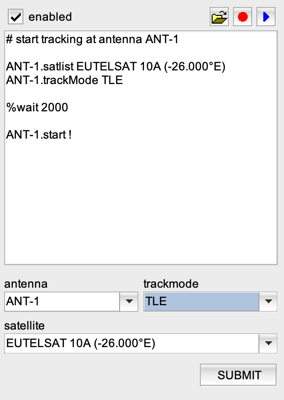
If you change any of the selections antenna, trackmode or satellite, the software replaces the the macro text with a fragment which sets up the antenna for the selected satellite and tracking mode and starts tracking on it. Additional commands / parameter settings may be aded to the macro before the schedule event gets saved by a click do SUBMIT.
The antenna scheduler function is only available for antennas which are managed by Antenna-Management devices. If there are no such devices configured in the M&C, the fields assigned to the antenna scheduler function apear disabled.