3.3 The User Management Window
The user management window lets you manage the list of users which are allowed to operate the software. You need to be a "super user" with privilege level 150 or higher to open the user management window.
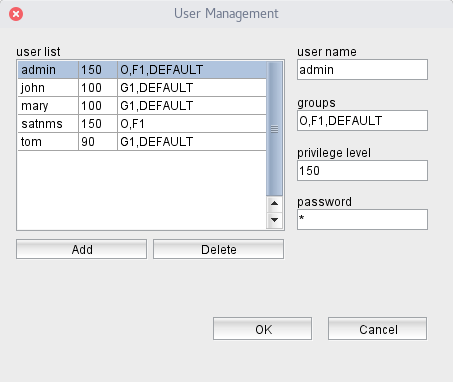
The user management window shows a list of all users known to the software. You may click to a user in the list to show the properties of this user in the entry fields right of the list.
- user name: The login name of the user. You cannot change the name of an existing user because this name identifies the user in the sat-nms software. You can however change the name in this field and press the button "Add" below the user list to create a new user definition.
- groups: This field takes a comma separated list of group identifiers. With the normal M&C software groups are meaningless, with the NMS software or the VioIP software however groups control which VLCs or which equipment a particular user may access. To change the group membership of the selected user simply edit/overwrite the group list and press enter.
- privilege level: The privilege level controls if a user may only control some basic aspects of the M&C system or if the operator may change everything. Higher numbers mean higher privileges or more comprehensive control. The privilege level numbers are often unique to the particular installation. Many installations of the sat-nms software however use the following standard levels:
- 150 = super user, may control everything including all configuration tasks.
- 100 = general user, may control all aspects of all devices, but may not change the sat-nms software configuration.
- 90 = user with limited access to some devices or parameters only. Makes sense only together with a default screen wich gives no general access to all devices.To change the privilege level of a user, enter the new level value and then press enter.
- password: This field always displays a single asterisk, even as a super user you cannot see a user's password. You can however set a new password for the user simply by typing in into tge entry field and pressing enter.
To add a new user to the list, type the name of the user in the "user name" field and click the "Add" button. This takes the actually selected user as a template and creates a new user with the group memberships and privilege level of the template. The new user has no valid password set, you have to set an initial password for the new user explicitly by typing it into the "password" field. The user may change this password later.
To delete a user from the list, select the user to delete and click the "Delete" button below the user list.
The software does not change the user database until you leave the user management window with the OK button. By pressing "Cancel" you can abort the edit process at any time.
Changed user permissions and credentials are valid with the next login of the user. Users currently remain with their privilege level and group assignments they had at the time they logged into the sat-nms software.