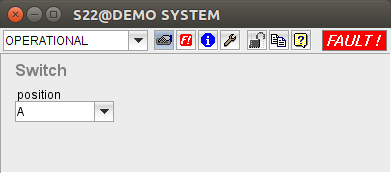
The software offers a Device window for each type of equipment it supports. Device windows are launched by double clicking to the device icons in a M&C user interface window . It shows all parameters read from the device and permits to alter each writable parameter. For clearance, the parameters are grouped to pages, you can switch between the pages using the tool-bar.
Writable parameters are shown with a light gray background, read only parameters appear with the standard gray background of the window. Choice parameters are changed immediately when you alter the selection. If you edit a text parameter, the field is shown with a yellow background. Once you press ENTER or you leave the field, the changed value gets transferred to the device. To cancel a parameter setting press ESC. The old value gets restored in the field and the background color returns to light gray. No parameter value is sent to the device in this case.
Tool-bar Functions
 --- The operation mode selector displays and sets the device operation mode. Device operation modes are:
 --- Opens a Load Device Preset dialog which lets you select a formerly stored device preset and apply the stored setting to the device. The chapter ' Managing Device Presets ' gives more information about device presets and how to handle them.
 --- Opens a Store Device Preset dialog which lets you store the actual device settings at the server for later retrieval.
 --- Switches the window to the 'faults' page. This page displays all fault flags the software knows about this device. Moreover, you can view and change the event priority for each particular fault flag:
Valid selections for the event priority are:
OFF --- This flag is completely suppressed.
INFO --- This flag is signaled as an 'informational' event.
WARNING --- This flag is signaled as a 'warning' event.
FAULT --- This flag is signaled as a 'fault' event.
ALARM --- This flag is signaled as an 'alarm' event.
 --- Switches the window to the 'info' page. This page gives some information about the type of equipment controlled.
 --- Switches the window to the 'maintenance' page. This page lets you set some configuration parameters and gives access to the 'low level interface' of the device.
 --- Locks the operation of the device that no other user can change device settings. See paragraph device locking below for details. If locked, the button shows a closed red lock:
 --- Duplicates / clones this window. This is useful if you want to have more than one instance of a device window open at a time.
 --- Launches the web browser with the help page for this individual device type. For a list of device types supported by the software see the Device Driver Reference .
Device locking
Clicking the button once locks the operation of the device. The button icon changes to . If the device is locked, no other user may change devices settings. Locking is done along the user name, hence if you are logged in a second time an another place, you can operate the device from there as well.
A second click to the lock button releases the lock. Only the operator who set the lock may release it. This need not to be done at the same place where the lock was set bot you must be logged in with the same user name.
Administrators (with a privilege level of 150 or above) may release the lock in any case, also a restart of the sat-nms M&C server releases all pending device locks.
Remarks