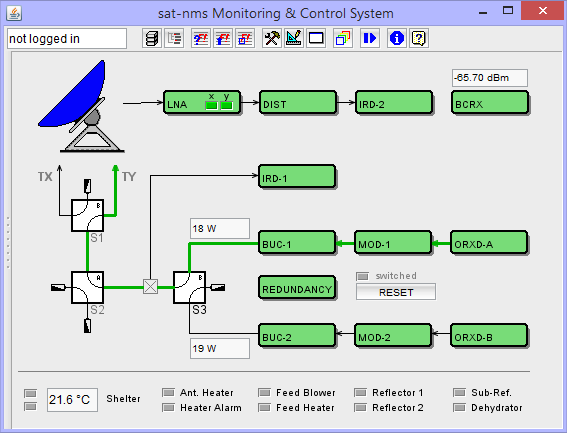
The M&C main window forms the main entry point to the M&C user interface. As most of the subsidiary M&C windows, it is widely user configurable. In many cases the M&C main window will contain a block diagram showing the state of the devices operated by the M&C like shown in the example below.
In this block diagram each piece of equipment controlled by the M&C is represented by an icon in the window. The color (and/or shape) of the icons signals the state of each device. A double click to a icon opens the Device window for this device, a unified M&C user interface to it.
Tool-bar Functions
 --- The left field at the window's tool-bar shows the login-name of the user who is actually logged in. You may click with the mouse to this field, the program pops up the login/logout dialog.
 --- Shows a drop down list with all devices installed in the M&C system. Selecting a device from this list opens it's Device window .
 --- Opens the M&C Tree View Window .
 --- Opens the Event Report window .
 --- Opens the Live Event Log window .
 --- Opens a list of currently active faults.
 --- Opens the Device Setup window to configure the device setup of the M&C system.
 --- Opens the Screen Editor window to modify the layout of this M&C window.
 --- Opens a terminal window which connects to the debug / test port of the M&C server.
 --- Opens the User Management Window . You must be logged in with privilege level 150 or higher in order to open this window.
 --- Opens a file select dialog which loads or saves the window layout of the application.
 --- Opens the Macro Management window which controls recording and replay of equipment setting macros.
Remarks