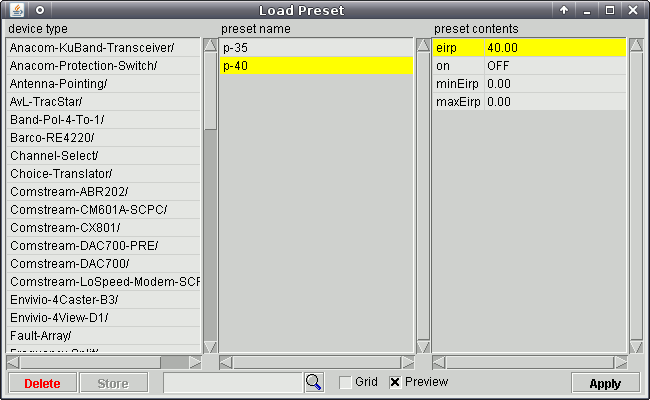
Most of the sat-nms device drivers allow to store a snapshot of the device's settings in 'device preset' files and let the operator restore these settings at a later time. The load / store preset feature is accessible though the tool bar of the device's ' Device Window '.
Presets are stored at the server your client program connects to. In a M&C environment this is the M&C server, with a NMS environment this is the central NMS server. This means in the latter case a preset may be stored while operating one VLC and later may be applied to a device on another VLC.
Presets always are dedicated to the device (driver) type they were recorded with. This is because is makes no sense to apply the settings of a beacon receiver to a DVB encoder. The target device will not 'know' what to do with the receiver settings. Even with similar devices (e.g. two IRDs from different vendors) there may be differences between the number and type of settings the devices understand. Hence, the software stores the preset files in a "by device driver" structure.
To load a stored preset, click the 'load preset' icon in the device window tool bar and select the preset in the middle list of the displayed dialog. If the Preview mark at the bottom of the dialog is checked, the right column shows the selected preset's contents. You may want to uncheck the Preview mark if your your connection to the M&C/NMS Server has a very poor bandwidth. Press Apply to apply the settings stored in the preset and close the dialog.
If there is a huge number of presets defined for the actual device type, the search function helps to find the proper preset file: Enter a search key into the field at the dialog's bottom line and press the search button to display only presets which contain the key in their name (the search is not case sensitive). You may specify multiple keys, separated by space characters. Only presets which contain all of the keys in their name will appear in the list.
You may align the list of preset names to columns along the dashes in the names by checking the Grid mark. This specially is useful, if you strictly follow a certain naming scheme for your presets (e.g. something like 'satellite-channel-variant').
As mentioned above, presets are dedicated to the device type used to record them. However, for special applications the preset load dialog allows to apply a preset from another device type. For this, select the device type in the left column and then the preset file in the middle column. The program displays a prompt you have to quit, to prevent you from accidentally applying a preset from a wrong device type.
Editing Presets
If your system administrator gave you the permission for this, you are able to modify stored presets. The software supports both, permanently modifying a preset definition but also changing some parameter temporarely before applying the preset:
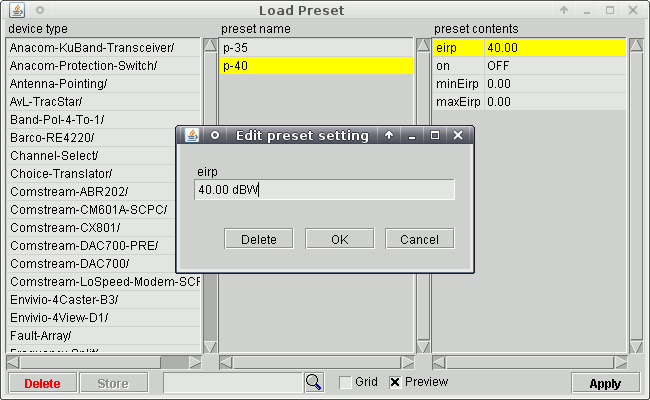
Be sure to have the Preview mark checked and select the preset to modify. Double-clicking a parameter in the right column opens a small Edit preset setting dialog showing the value stored for this parameter. You may change the value to your needs and quit the dialog with the OK button to accept the modification. Clicking Delete removes the selected parameter from the preset which means that this parameter remains unchanged when the preset gets applied. Cancel leaves the dialog without changing the parameter.
Changes made to the preset file this way are temporary, they are made in a local copy of the preset. If click to Apply , the modified preset gets applied to the device. To store the edited preset permanently at the server, click the Store button which is now activated since the preset has been modified.