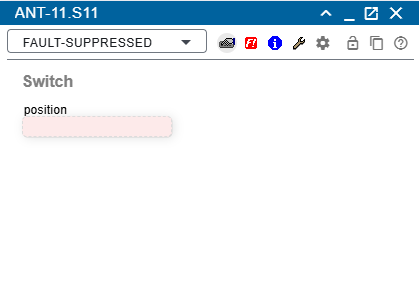
The M&C offers a device window for each type of equipment it supports. Device windows can be launched by device details panel or from device list. It shows all parameters read from the device and permits to alter each writable parameter. For clearance, the parameters are grouped to pages, you can switch between the pages using the tool-bar.
Functionality
The device window is a floating window, i.e. you can drag it from the header and drop it anywhere in the browser window. It has 3 main components:
Header
If the color of the header is blue, as shown in the image above, the device has no errors. If the device has an fault, the fault description (fault, warning, etc.) is displayed next to the header title and the background color of the header is also changed according to the fault (dark red on fault value "UNDEF!" and "COMFLT!", yellow on "Summary FAULT" and light red on "FAULT").
Toolbar: Various devices have different options for the toolbar, but most have the common options.
 : Opens a Load Device Preset dialog which lets you select a formerly stored device preset and apply the stored setting to the device. The chapter 'Preset editor' gives more information about device presets and how to handle them.
 : Click on save icon opens a Store Device Preset dialog which lets you store the actual device settings at the server for later retrieval.
 : Switches the window to the 'faults' page. This page displays all fault flags the software knows about this device.
 : Switches the window to the 'info' page. This page gives some information about the type of equipment controlled.
 : Switches the window to the 'maintenance' page. This page lets you set some configuration parameters and gives access to the 'low level interface' of the device.
 : Config page can be open by settings icon from toolbar.
 : Locks the operation of the device (through lock icon) that no other user can change device settings. See paragraph device locking below for details. If locked, the button shows a red lock.
 : Duplicates / clones this window. This is useful if you want to have more than one instance of a device window open at a time.
Device locking
Clicking the settings icon button once locks the operation of the device. The button icon changes it's color to red . If the device is locked, no other user may change devices settings. Locking is done along the user name, hence if you are logged in a second time an another place, you can operate the device from there as well.
A second click to the lock button releases the lock. Only the operator who set the lock may release it. This need not to be done at the same place where the lock was set bot you must be logged in with the same user name.
Administrators (with a privilege level of 150 or above) may release the lock in any case, also a restart of the sat-nms M&C server releases all pending device locks.
Content
Writable parameters are shown below the toolbar, read only parameters appear with the standard gray background of the window. Choice parameters are changed immediately when you alter the selection. If you edit a text parameter, the field is shown with a yellow background. Once you press ENTER or you leave the field, the changed value gets transferred to the device. To cancel a parameter setting press ESC. The old value gets restored in the field and the background color returns to light gray. No parameter value is sent to the device in this case.