1.25.2 Live log
The Live Event Log window shows the recent event messages as they are received from one of the M&Cs. The Live Event Log window shows the messages in the order of their arrival at the M&C. The window can be resized, scrolled and always shows the last 25 messages.
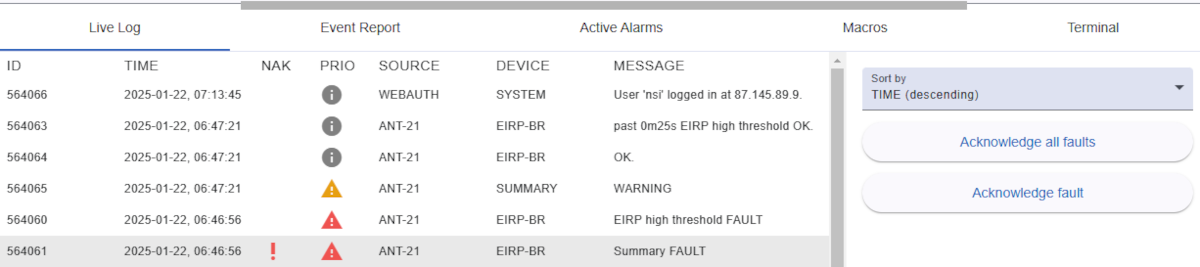
The sort order of the event list (newest first / oldest first) may be toggled using the Sort by dropdown on the right hand side.
Table columns
- ID: The event ID. This is a unique number the software assigns to each event which arrives at the M&C.
- TIME: The time stamp when the event was originated
- NAK: The 'need acknowledgment' mark. Messages showing a red exclamation mark in this column are fault messages which need to be acknowledged by the operator.
- PRIO: The message priority or severity. It also is a search criteria in the Event Report window. The following priority symbols may appear:
 This is an informational message (lowest priority)
 This is a warning message (medium priority)
 This is an fault message (high priority)
 This is an critical message (highest priority)
- SOURCE: The primary message source. This usually is the ID of the MNC or
BACKEND for events coming from a backend service or WEBAUTH for messages related to user authentication.
- DEVICE: The secondary message source. This gives a more detailed information about the source of the message. It is usually the name of the device in a MNC which caused the event. For messages from backend or authentication service the value is
SYSTEM.
- MESSAGE: The message text which describes the full details of the event.
Right side toolbar
- Sort table: The table content can sort by descending and ascending.
- Acknowledge all faults: Acknowledge all faults marked with the red exclamation mark.
- Acknowledge fault: This button may appear if you want to acknowledge messages marked with the red exclamation mark. Simply select the row with red exclamation mark with mouse click. The exclamation mark will then disappear and a confirmation message will be added at the end of the log.