1.25.5 Macros
The sat-nms software includes a macro recording and playback feature which lets you automate complex equipment settings to one mouse click. The following chapters describe the user interface which give access to this feature.
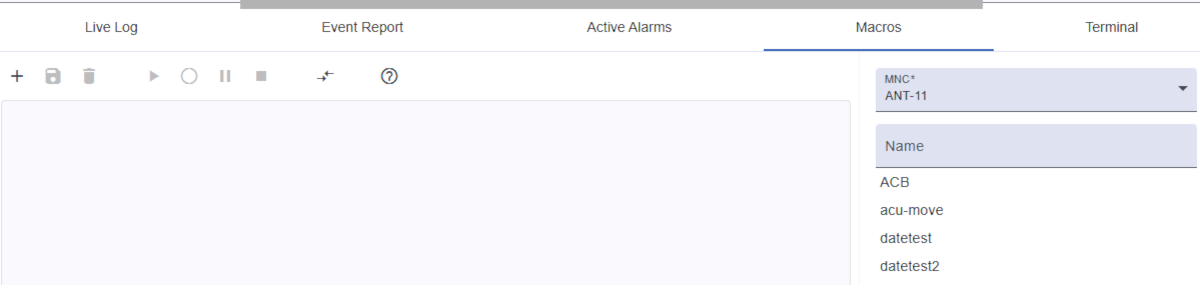
Please refer to the chapter Automating Procedures With Macros for details.
Macro toolbar
You must select an M&C from the right side toolbar, so that this toolbar can be displayed. It provides function to work with macros on the selected MNC system.
- New macro: On click on
+ button you can create the new macro.
- Save macro: Save modifications by clicking on this button.
- Save macro as: Save macro with a new name.
- Delete macro: Delete selected macro.
- Play macro: Run the selected macro.
- Record macro: Start recording the macro. The record icon will appear in top toolbar.
- Pause/Continue
- Pause recording: Pause the actual recorder, e.g. to perform step which should be not part of the macro.
- Continue recording: Resume recording, stops
- Stop recording: Stop the macro recording.
- Compare macros: To compare macros, please select macros from the macro list on the right-hand side. Both macros are displayed next to each other. The “Compare” button is displayed at the bottom of the window. It triggers a dialog that displays a better comparison. Clicking again on button will disable compare mode.

Right side toolbar
- MNC: Select an M&C to load, stored or execute macros.
- Name: On creating new macro name should be entered, otherwise it works as a filter also. You can type the name of the macro to find the saved macro.
- Macro list: Once you selected an M&C, a macro list will be displayed under the name field. Simply select macro to perform actions described in above toolbar section.
Macro editor
The area is located under the macro toolbar. You can also edit the selected macro by simply typing as you would do it in a text editor. This area is also used to compare macros.
If you manually edit macros a simply syntax check applies. If this fails the save buttons are disabled and the message (invalid) is shown behind the macro name. The required syntax for each line is:
[parameter name] [value] or [macro directive] [value]
Example macro:
S1.position "B"
%wait 2000
MOD-1.tx.on "ON"
MOD-1.dvbMode "DVB-S2"
BRX-1.threshold "-64.2"