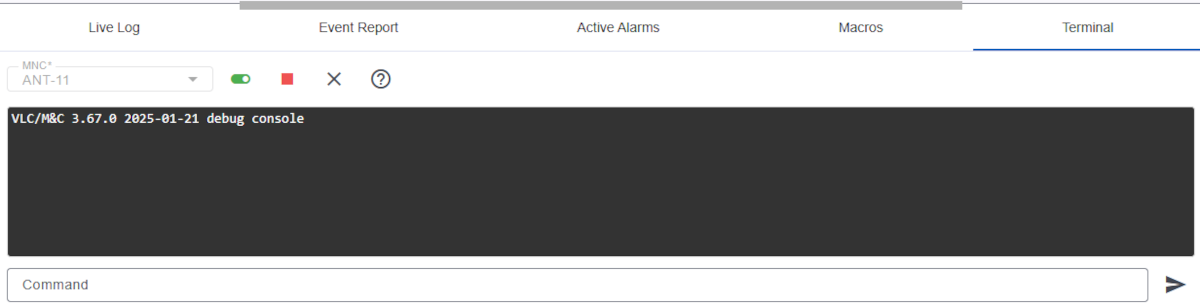
The terminal tab gives you access to the debug console of a MNC system. This is a valuable tool to inspect the low level communication to devices which are controlled by the M&C.
The terminal window consists of a display area which shows the debug output of the MMC and a command entry field at the bottom of the window. The tool bar at the top gives you access to the following functions:
After the terminal display area there are 'Command' input and 'send' icon. You can just type in command input and press 'enter' key to send command.
A command history of the current terminal session is available via up and down cursor keys.
Debug commands
In the input line at the bottom of the window, you can enter a number of debugging commands that can be helpful, for example, when testing new device drivers.
The following commands may be entered:
| command | description |
|---|---|
get <msg-id> |
Get the current value of an parameter with the ID <msg-id> |
set <msg-id> <v> |
Set parameter with the ID <msg-id> to a value as it would entered by the user |
loop <msg-id> <v> |
Set parameter with the ID <msg-id> to a value as it would read from the device |
touch <msg-id> |
Force the parameter with <msg-id> to be read from the device with the next driver cycle |
threads |
Show a comprehensive list of device threads |
thread <n> |
Show details of thread number <n> |
peers |
Show peers / list of connected clients |
peer <n> (view|verbose|silent|kill) |
Details and functions of peer number <n> |
restart |
Restart MNC service (same as restart button in client) |
shutdown |
Stops MNC service. Attention: service has to be restarted on the command line |
nolimit |
make the 'debug.log' file unlimited in size. |
limit |
make the 'debug.log' file limited in size again. The MNC always starts always with limit activated |
csm-debug |
toggles the debug output of all (legacy) CSM spectrum analyzers ON/OFF. The debug output appears in the .panic.log file. |
Please refere to the chapter Debugging with Terminal Session in the sat-nms Universal device driver language reference manual.