1.17.4 Unified dialogs
Schedule-event dialog
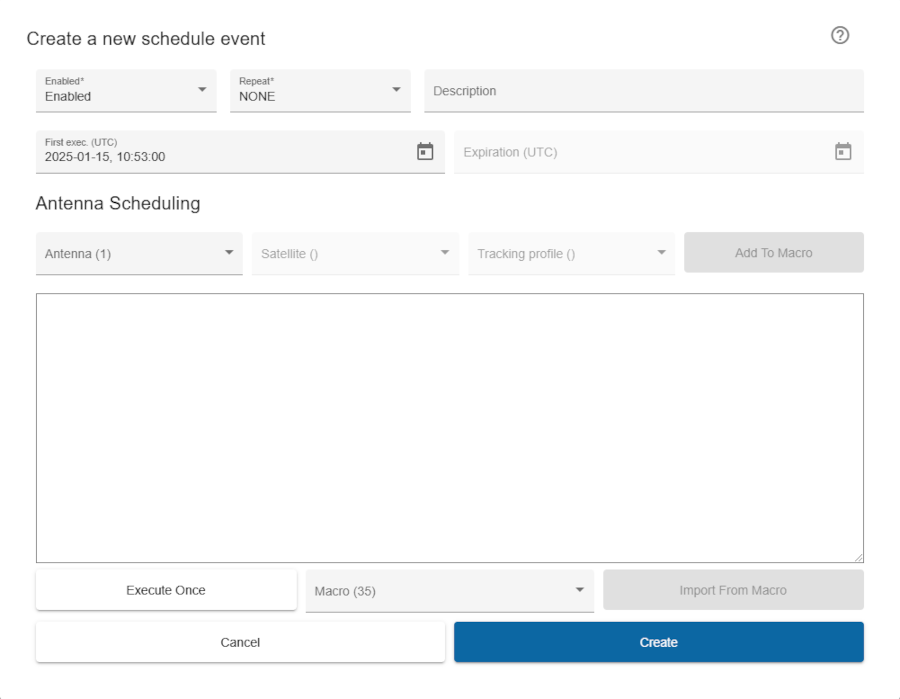
Trigger:
- when you click on an empty date in the Calendar View or the "+" button in the Table View (to create a new event) or
- an existing event (to edit) in either the Calendar View on click on an event or in the Table View on pencil icon (to edit) or circular arrow (to duplicate) in the Functions column
- The dialog title clearly indicates whether you are creating a new event, editing or duplicating an existing one, ensuring clarity in the action being performed.
- There is a help button on the right-hand side that leads directly to the scheduler documentation.
Fields:
- Enabled: If enabled, the event is enabled. An enabled event will execute its macro at due time, a disabled event will skip this
- Repeat: The repeat mode for the event. This may be one of:
- NONE: The event is executed once at the date and time specified in "first execution".
- DAILY: The event is executed first at the date and time specified in "first execution", then at all following days at the same time but not beyond the day given in "last execution" below.
- WEEKLY: The event is executed first at the date and time specified in "first execution", then every seven days at the same time but not beyond the day given in "last execution" below.
- MONTHLY: The event is executed first at the date and time specified in "first execution", then every month at the same day of month and time but not beyond the day given in "last execution" below. If you program a monthly event for 29.-31. of a month, it will be executed at the very last day of any month which is shorter.
- First exec. (UTC): The date and time of the first execution of the event (for repeated events) or simply the time of execution for an event executed only once. Click into the calender icon in field to open a pop up calendar widget which assists you entering the date. NOTE: You have to enter time manually.
- Description: A brief description of the event.
- Expiration (UTC): The day of the last execution of the event.
- Antenna scheduling: The Macro Scheduler provies a function to create easily a macro to start tracking at avert in antenna. The antenna scheduler function is only available for antennas which are managed by Antenna-Management devices. If there are no such devices configured in the M&C, the fields assigned to the antenna scheduler function appear disabled.
- Antenna: Select an antenna from drop-down.
- Satellite: Select an satellite from drop-down.
- Tracking profile: Select an tracking profile from drop-down.
- Add to macro: Replaces the macro text with a fragment which sets up the antenna for the selected satellite and tracking mode and starts tracking on it. Additional commands / parameter settings may be added to the macro (below this button in text field) before the schedule event gets saved.
- Macro text: Brief description of an macro to be saved. It is also editable.
- Macro: Select an recorder macro from drop-down list.
Actions:
- Execute Once: To execute the macro once. Useful for testing the macro.
- Import From Macro: It imports the selected macro and displays the details in the free area above it.
- Create/Save:
- For new events, this creates the event with the provided details.
- For existing events, this saves any modifications.
- Cancel: Closes the dialog without saving.
On delete event confirmation dialog
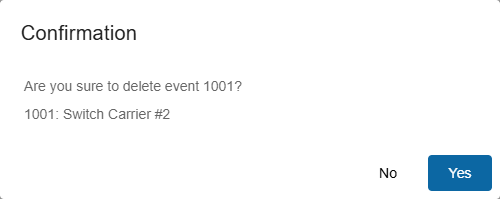
- Trigger: Opens when you click the trash icon for an event in either view or click delete outdated in table view.
- Content: Asks the user to confirm whether they want to delete the selected/outdated event(s).
- Actions:
- Yes: Deletes the event(s) permanently.
- Cancel: Cancels the deletion action.