1.5 Treeview
The so call Treeview provides a list of devices of all connected MNC system organized in a tree. It can be accessed from the sidebar tree icon below the logo. You can arrange the devices and sub-trees in the Treeview Editor
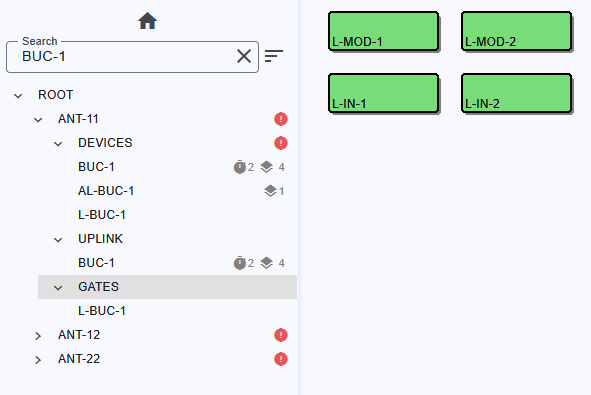
- Home icon: Hide the treeview.
- Search: filter devices by name
- Sort: Tree can be sorted by
- ascending device name
- descending device name
- default: as definded in TreeView Editor (natural order)
The tree shows all connected MNC's as top node and the configured subsystems. Each node can have one or more devices attached.
Each device node is marked with its fault state with icons
- no icon: ok
- grey icon: state cannot be determined
- yellow icon: device summary state is warning
- red icon: device summary state is fault or alarm
Subsystem nodes inherit the fault state from the subordinate elements, summed up from the devices and subsystems.
Devices with masked or delayed faults will additionally show the count of these faults.
Functionality
- > : Expand the node.
- < : Collapse the node.
- Click on node: expands the node and will be load configured screen. If no screen for this subsystem is defined it shows device icons of all devices which belongs to the subsystem.
- Click on device: Opens device details panel on right hand side