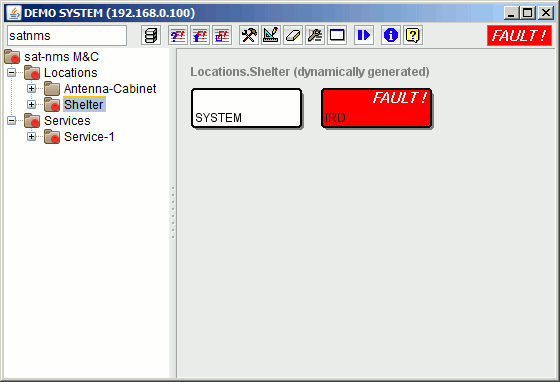
The M&C Tree View Window is much like the M&C Main Window. It provides the same functions as the latter and adds a tree navigation bar at the left side of the window. M&C Tree View Window may used as a stand alone client window or launched from the M&C Main Window.
By default, the right side of the window shows the default user screen. The left part of the window shows the tree of subsystems and the devices attached to them. Each device node is marked with its fault state (no mark=OK, yellow mark=WARNING, red mark=FAULT). Subsystem nodes also show fault marks, summed up from the devices and subsystems contained in it.
Clicking on a node of the tree in the left part of the window changes the contents of the right part:
The Tree View Editor may be used to edit the subsystem tree and the devices attached to each node.
Tool-bar Functions
 --- The left field at the window's tool-bar shows the login-name of the user who is actually logged in. You may click with the mouse to this field, the program pops up the login/logout dialog.
 --- Shows a drop down list with all devices installed in the M&C system. Selecting a device from this list opens it's Device window .
 --- Opens the Event Report window .
 --- Opens the Live Event Log window .
 --- Opens the Device Setup window to configure the device setup of the M&C system.
 --- Opens the Screen Editor window to modify the layout of the actually displayed user screen. If the screen is dynamically generated, it will be stored at the server's disc and will no longer be updated automatically.
 --- Deletes the user screen actually shown. This reverts the screen to the dynamically generated version provided by the software.
 --- Opens the Tree View Editor .
 --- Opens a terminal window which connects to the debug / test port of the M&C server.
 --- Opens the User Management Window . You must be logged in with privilege level 150 or higher in order to open this window.
 --- Opens the Macro Management window which controls recording and replay of equipment setting macros.
Remarks
Tree nodes may be expanded or collapsed either by clicking to the '+' marks in between the nodes or by double-clicking the node to expand/collapse.