First install a network cable between the IO-FEP and your computer. If you have a crossover cable available, this is very easy: simply put the cable into the network connectors of computer and IO-FEP. Without a crossover cable, you need to connect both, the computer and the IO-FEP to the same network hub using two standard network cables. It is essential, that the computer and the IO-FEP are connected to the same network segment, the configuration program is not able to find the IO-FEP through routers or network switches.
Now power on your computer and connect the IO-FEP to the 24V D/C supply.
Insert the CD-ROM into the computer's drive and inspect it's contents through the 'My Computer' icon on your desktop. Double-click to the 'ChipTool.exe' program in the 'ChipTool' directory.
When the ChipTool program is running, type CTRL+F to make the program search the IO-FEP. The program shows a list containing at least one entry describing the actual network parameters of the IO-FEP. 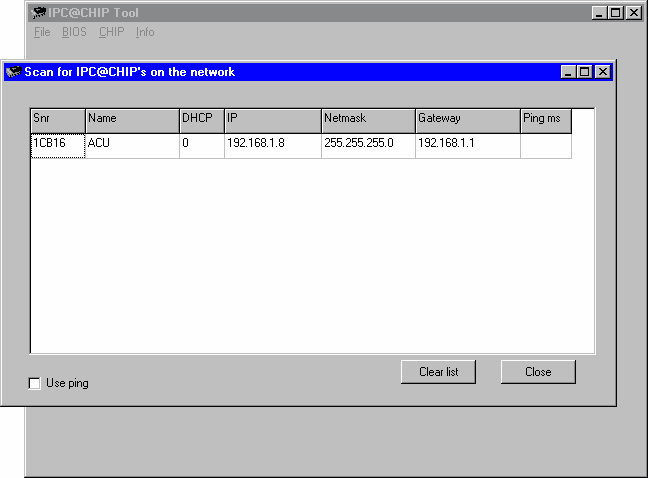
The serial number shown in the first column of the list, must match the serial number printed on the processor's enclosure. If the list stays empty, the IO-FEP is not connected properly. If there are more entries in the list, the configuration program has found other devices in this network segment which use the same technology.
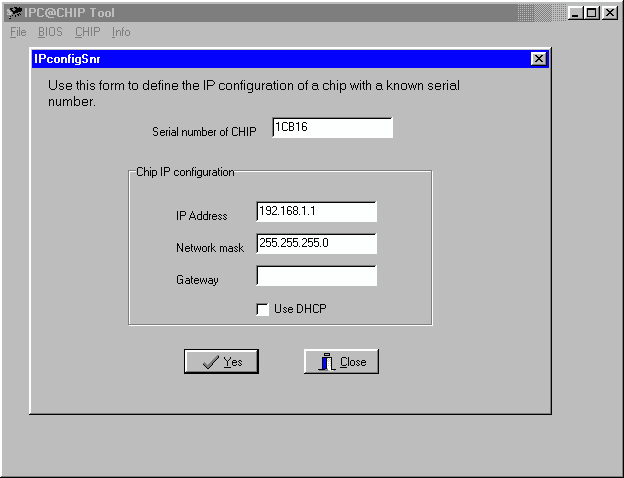
Now type CTRL+I to open the IP configuration window of the program. In this form enter the processor's serial number, it's new IP address and network mask. If the IO-FEP later shall be operated through a router, enter the address of the router on the gateway field, otherwise leave this field blanc. Be sure, that the 'DHCP' mark is unchecked. Finally click to the 'Yes' button to set the new parameters at the IO-FEP